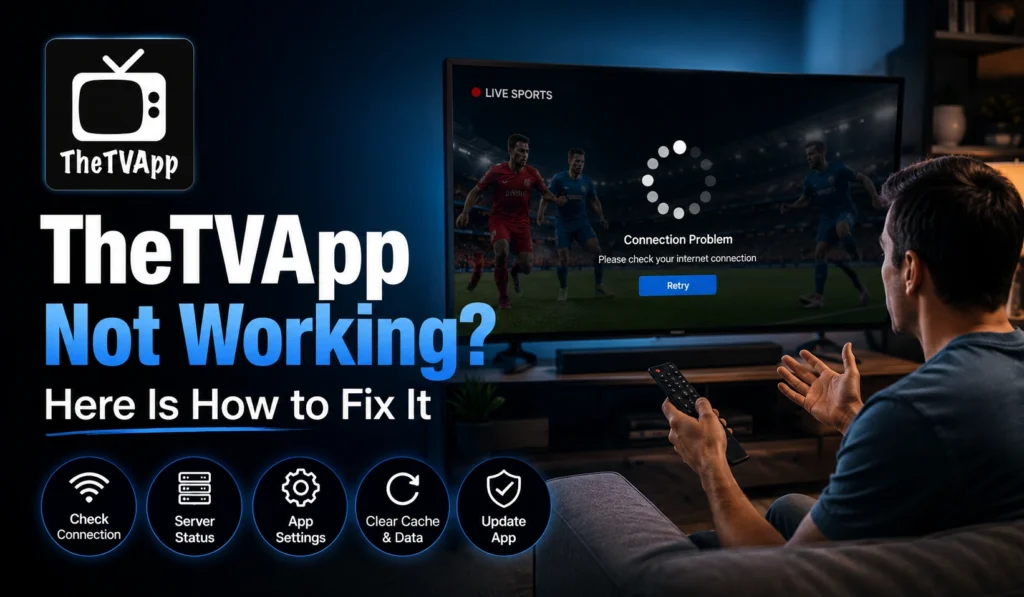
There’s honestly nothing more annoying than getting comfortable for the big game, snacks sorted, phone on silent, and then TheTVApp just sits there refusing to load. We’ve all had that moment. But here’s the thing worth knowing right away. The site fully going down is actually pretty rare. Most of the time the real problem is something small and local, like a stale page stuck in your browser, an ad blocker quietly breaking the player, or just one stream that died while everything else is fine.
That’s good news for you, because small problems have quick fixes. You really don’t need to be a tech person to sort any of this out either. What I’ve done below is line everything up in a sensible order, the fast easy checks first, then the slightly bigger stuff if the easy things don’t do the trick. We’ll go through how to tell if the site is even down, the actual numbered fixes, and a few habits that stop this happening again. Let’s get you back to watching.
Why Does TheTVApp Stop Working?
Before you start changing settings, it really helps to understand what’s going on under the hood, because TheTVApp doesn’t work the way a normal streaming app does. It mostly gathers links to live streams that are hosted on other servers around the internet, rather than hosting the video itself. So when you click a channel, you’re really being sent off to a stream sitting somewhere else, and that stream can be rock solid one minute and gone the next. That single fact explains most of the problems people run into, and once it clicks, the fixes make a lot more sense.
With that in mind, here are the usual suspects behind a broken stream or a page that won’t load:
- A dead or overloaded stream server on a popular channel
- Your browser holding onto an old, broken copy of the page
- An ad blocker fighting with the player, or the ads breaking the page
- Your internet provider throttling or blocking video traffic
- A channel that’s geo-restricted to another country
- The site’s main domain getting changed or blocked
How to Fix TheTVApp When It Is Not Working
Alright, now the actual fixing. I’ve ordered these from the quickest, lowest-effort checks down to the bigger ones, so the smart move is to just work through them top to bottom. The moment something brings your stream back, you can stop right there and get on with watching. No need to do all eight.
1. Check If the Site Is Actually Down
Before you blame your settings or start clearing things, take ten seconds to figure out whether the problem is even on your end. The fastest test is to pull up TheTVApp on your phone using mobile data instead of your home wifi, and try a different channel while you’re at it. If it loads fine on mobile data but not on your home network, then the issue is your connection or browser, not the site. But if every channel is dead across every device and every network you try, then yeah, the site or its streams are probably genuinely down for a bit, and waiting it out or hunting for a current link is really your only move.
2. Hard Refresh and Clear Your Cache
I know this one sounds almost too simple to bother with, but trust me, it clears up a surprising number of loading problems. Your browser loves to hang onto an old, broken snapshot of the page and then just keeps serving you that same dead version no matter how many times you reload normally. A proper hard refresh forces it to go grab a fresh copy, and that’s often all it takes.
- Press Ctrl + F5 on Windows, or Cmd + Shift + R on a Mac, to force a clean reload.
- If that doesn’t help, clear your browser cache and cookies for just the last hour.
- Close the tab completely, then reopen TheTVApp in a brand new one.
3. Pause or Adjust Your Ad Blocker
Ad blockers are a weird one, because they can be both the villain and the hero here. TheTVApp keeps the lights on through ad revenue, so a really aggressive blocker can sometimes break the video player or stop the page rendering properly. The catch is that the ads themselves, especially the pop-up kind, can also mess things up if you don’t have any blocker at all. So it genuinely cuts both ways, which is why a quick test is worth it.
The simplest thing is to pause your ad blocker on the site, reload, and see if the player springs back to life. If it does, you’ve found your culprit. If you’d still rather keep ads at bay, and most people would, switch to something that’s friendlier with streams like uBlock Origin, or just run the Brave browser since it quietly blocks most of the junk on its own. Either way, keep an eye out for sneaky pop-ups, and if a random tab opens, close it and click the player one more time.
4. Switch to a Backup Stream
This is the fix for when the page itself loads perfectly fine, but the video is frozen on a black screen or just buffers forever and never actually starts. Nine times out of ten that means the specific stream you clicked has gone down, which is completely normal given how these streams work. Look just below the player and you’ll usually spot a small list of backup stream links, and the popular channels almost always have a few sitting there ready. Click a different one, give it a few seconds to actually load before you write it off, and keep working down the list until one plays. Easy fix once you know to look for them.
5. Fix Constant Buffering
Buffering is probably the most common complaint of the lot, and it nearly always comes down to one of two things, either your connection speed or a stream server that’s getting absolutely hammered. The good part is you can usually improve it from your side in under a minute, so work through these in order rather than jumping straight to the drastic stuff.
- Lower the quality first using the selector in the corner of the player. Dropping from 1080p down to SD fixes it instantly more often than you’d think.
- Close any other tabs or apps that are eating your bandwidth, especially downloads or other videos playing in the background.
- Restart your router if the whole connection feels sluggish. Unplug it, count to thirty, plug it back in. Ancient trick, still works.
- Plug in with an ethernet cable if you’re on a laptop or desktop, since a wired connection beats wifi almost every single time.
Quick heads up. If buffering only ever happens on TheTVApp while every other site loads fast, your internet provider might be throttling video traffic specifically. A decent paid VPN can usually get around that.
6. Turn On a VPN to Bypass Blocks
Sometimes the problem has nothing to do with your settings at all, and no amount of refreshing will help. Your internet provider might be blocking the site, your whole country might be, or the particular channel you want could be geo-restricted to another region entirely. A VPN gets around all three by making your connection look like it’s coming from somewhere else, so flip one on, connect to a server in the US or the UK, and reload TheTVApp once it’s actually running.
One honest word of advice though, go with a paid VPN if you can manage it. The free ones are tempting, but they’re usually slow, often capped, and they have a nasty habit of making buffering worse rather than better, which kind of defeats the whole point. And keep your expectations realistic too. A VPN is brilliant for unblocking and for beating throttling, but it won’t magically revive a stream that’s genuinely offline or fix a server that’s drowning in traffic.
7. Find the Updated or Mirror Link
Every so often the issue isn’t your setup at all, it’s that the address you’re using is simply out of date, because sites like this change their main domain now and then or get blocked at the network level. If absolutely nothing loads no matter what you try, there’s a good chance that bookmark you saved months ago is pointing at a dead address, so search for the current official link instead. Just be genuinely careful while you do, because copycat and clone sites are everywhere, and the rule of thumb is dead simple: stick to the real domain, and never trust any link that suddenly wants you to install an app or type in payment details, since that’s a scam every single time.
8. Try a Different Browser or Device
If you’ve made it this far and it’s still misbehaving, there’s a fair chance the glitch is specific to your browser or device rather than the site, so it’s worth ruling that out. Run through whichever of these matches your setup:
- On a phone or tablet, fully close the browser app instead of just minimizing it, reopen it, and make sure the browser is updated since older versions sometimes choke on newer streams.
- On a Smart TV or Fire Stick, skip the often clunky built-in browser, install the Silk browser from the Amazon App Store on Fire Stick, or just cast from your phone with Chromecast or AirPlay for a smoother ride.
- On a desktop or laptop, switch browsers entirely, so if Chrome is being stubborn, give Firefox or Brave a go, because a simple swap rules out a shocking number of weird little glitches.
How to Avoid TheTVApp Problems in the Future
Once you’ve got it working again, a few small habits will save you most of this hassle down the line, and they matter most on the big sporting nights when everyone and their cousin is streaming at once. The whole idea is to be ready before the action starts rather than scrambling once your stream dies mid-match, because that’s exactly when servers buckle and patience runs thin. None of this takes more than a minute to set up.
- Open two or three backup stream tabs before kickoff on big events, so a dropped stream is just a quick click away
- Bookmark the genuine official link and refresh it now and then so you’re never stuck on a dead domain
- Get your ad blocker dialed in ahead of time, ideally uBlock Origin or Brave, so pop-ups never catch you off guard
- Keep a trusted paid VPN installed and ready if you regularly hit regional blocks or throttling
- Update your browser every so often so it never falls behind the streams
Final Thoughts
At the end of the day, TheTVApp not working is almost always some small, fixable thing rather than a real disaster, so don’t let it ruin your evening. Start with the easy wins every time, a hard refresh, a switch to a backup stream, and a quick look at your ad blocker, since that trio alone solves the bulk of problems people run into. If the whole site genuinely won’t load, a VPN or a fresh, current link usually sorts it out.
Keep this little checklist somewhere handy, maybe bookmarked right next to the site itself, and honestly you’ll rarely miss more than a couple minutes of the action. Now go enjoy the game.
Frequently Asked Questions
Is TheTVApp down for everyone, or just me?
The quickest way to tell is to open it on a different network, like your phone on mobile data instead of home wifi. If it loads there, the trouble is your own connection or browser, not the site itself.
Why do streams keep dying in the middle of a match?
Those streams live on third-party servers that get absolutely slammed during big events, so they buckle under the traffic. Keeping two or three backup tabs open before kickoff means you can switch the second one drops and barely miss a thing.
Will a VPN fix everything?
Not everything, no. It’s great for regional blocks and provider throttling, but it can’t revive a stream that’s genuinely offline or rescue a server that’s overloaded. Those are different problems with different fixes.
Is it safe to keep clicking different links to find a working one?
Only if you stick to the real domain. Any link that suddenly pushes you to download an app or hand over card details is almost certainly fake, so close it and move on.
So TheTVApp picked the worst possible moment to stop working? Yeah, take a breath. Nine times out of ten this is something small and totally fixable, not the end of the road. Stick with me for a couple minutes.